How to Browse Your Fly.io SQLite Database with a GUI (Without Downloading It)
Fly.io makes deploying SQLite trivial. Browsing it in production has been a mess of `flyctl ssh sftp get` and stale snapshots. Here's how to point TablePlus directly at your live Fly.io SQLite database over SSH — no downloads, no extra services.
Spicer Matthews
Founder, Cloudmanic Labs
Fly.io has done more than anyone to make SQLite-in-production normal. The deploy story is genuinely great. The "now look at the data" story is not. Every existing guide tells you to flyctl ssh sftp get the file and open it locally, which means you're always looking at a stale snapshot. This walkthrough shows you how to point TablePlus directly at the live SQLite database inside your Fly.io machine — no downloads, no extra services, no exposed ports.
Why browsing SQLite on Fly.io is harder than it should be
Fly.io deploys love SQLite. The Rails docs, the Laravel guides, the Phoenix examples — they all point you at litefs or a plain SQLite volume. The data lives as a file inside a tiny Fly machine somewhere on the edge.
The moment you want to look at that file, you fall off a cliff. The official advice in the Fly community has been some variant of "SCP it down and open it locally" since 2022. There's no port to forward, no host to connect to from TablePlus, and most third-party GUIs assume a networked database.
The fundamental problem is the same one we covered in the TablePlus over SSH guide: SQLite isn't a server, so there's nothing for a GUI tool to "connect" to. On Fly.io that problem is amplified — the machine itself is ephemeral, you're going through Fly's WireGuard mesh, and the audience is much more likely to be the kind of dev who actually wants to live-debug a misbehaving production row.
The wrong way: flyctl ssh sftp get
The most common answer on community.fly.io looks like this:
fly ssh sftp get /data/app.db ./local-snapshot.db
sqlite3 ./local-snapshot.db
It works. It also has problems that disqualify it for most real debugging:
- It's a snapshot. By the time it lands on your laptop, your application has already written new rows. If you're debugging a race condition, the bug has moved.
- It's slow for anything non-trivial. A 200MB SQLite file takes long enough to copy that you stop using this workflow within a week.
- You can't write back. Any edit you make locally is invisible to production. If you fix a row in the snapshot, you have to manually replay the change.
- WAL/SHM files matter. If your database is in WAL mode (it should be), the
.db-waland.db-shmfiles contain uncommitted data. SCPing just the.dbfile gives you an incomplete view.
Fine for occasional forensics. Wrong for "I just want to check whether the new user got their plan upgraded."
The other wrong way: run sqlite-web inside your Fly machine
The other workaround is to bake a web-based SQLite viewer into your Fly app: sqlite-web, sqlite-browser, Adminer, or a fork thereof. Expose it on an internal port, tunnel to it through flyctl proxy, and you've got something.
The problems compound fast:
- You're shipping a database admin tool into your production deploy. Now you have an attack surface that didn't exist before, plus auth to configure, plus another moving piece in your Dockerfile.
- The UX is nobody's favorite. Web SQLite viewers exist, but they're not TablePlus. You give up keyboard shortcuts, query history, formatting, exports, and saved queries.
- It doesn't match how Fly users think. Half the reason people pick Fly is that machines feel disposable. Adding state-ful admin UIs to those machines is friction.
A few people make this work. Most regret it after the second container redeploy where they have to remember to disable the admin route.
The right way: SSH straight in and proxy locally
Fly already gives you a clean SSH path to every machine via fly ssh console. The same approach we use for plain VPS SQLite works here: hold an SSH session open from your laptop, run a tiny Postgres-protocol proxy locally, and let TablePlus talk to the proxy.
The whole flow:
- You open Remote SQLite on your Mac.
- It shells out to
fly ssh console -a your-appunder the hood, using your existing Fly CLI credentials. - It starts a local Postgres-wire-protocol server on
localhost:5432. - You open TablePlus, point it at
localhost, and browse your live Fly.io SQLite database.
No file downloads. No extra service deployed alongside your app. No exposed port. No auth to manage. The only thing on the wire is your existing Fly SSH session, which you already trust.
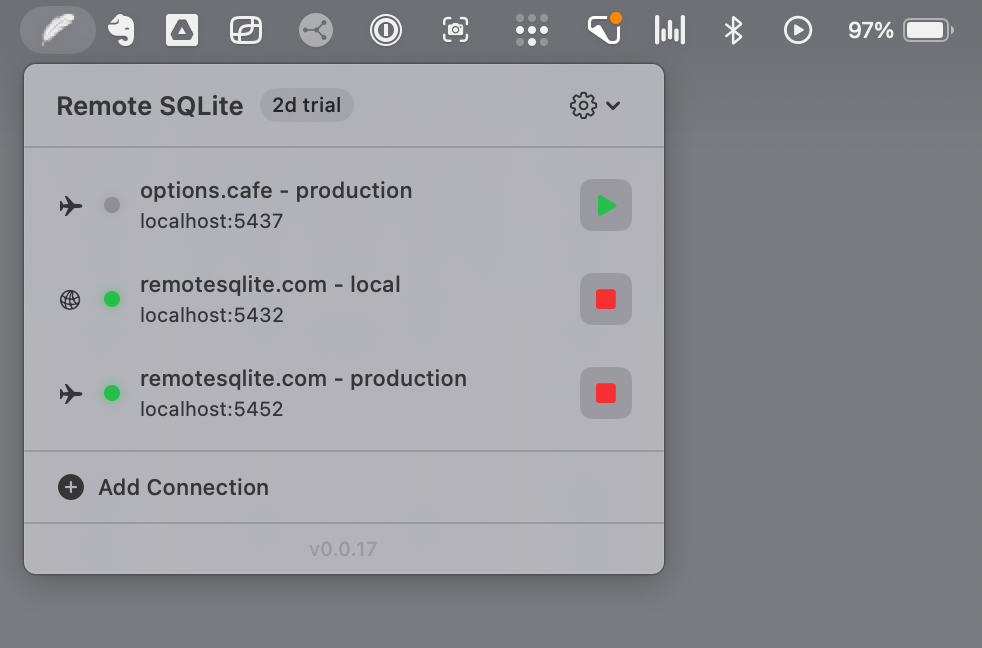
Step-by-step: connect Remote SQLite to a Fly.io app
Before you start
Make sure flyctl is installed and authenticated:
fly auth whoami
fly apps list
And confirm SSH access to your app machine works:
fly ssh console -a your-app -C "ls -la /data"
You should see your app.db (or whatever you named it) sitting on the mounted volume. If you can't ls the directory, fix that first — the most common reason is that the Fly machine boots into a non-root user that doesn't have read access to the volume.
Add the connection in Remote SQLite
Open Remote SQLite from the menu bar and choose New Connection → Fly.io. Fill in:
- App name — exactly what
fly apps listshows (e.g.myapp-prod) - Database path — the absolute path inside the machine, e.g.
/data/app.dbor/litefs/app.db - Read-only mode — leave this on for production. Strongly recommended.
No SSH keys, no hostnames, no ports. Remote SQLite uses your authenticated flyctl session to spin up an SSH connection through Fly's WireGuard mesh.
Hit Test Connection. It'll SSH into the machine, run a single read against your SQLite file, and confirm everything is wired up. Save.
Start the proxy and open TablePlus
Click the play button next to your new connection. Wait for the green dot. Right-click and choose Open in TablePlus. Your live Fly.io SQLite database is now visible in TablePlus.
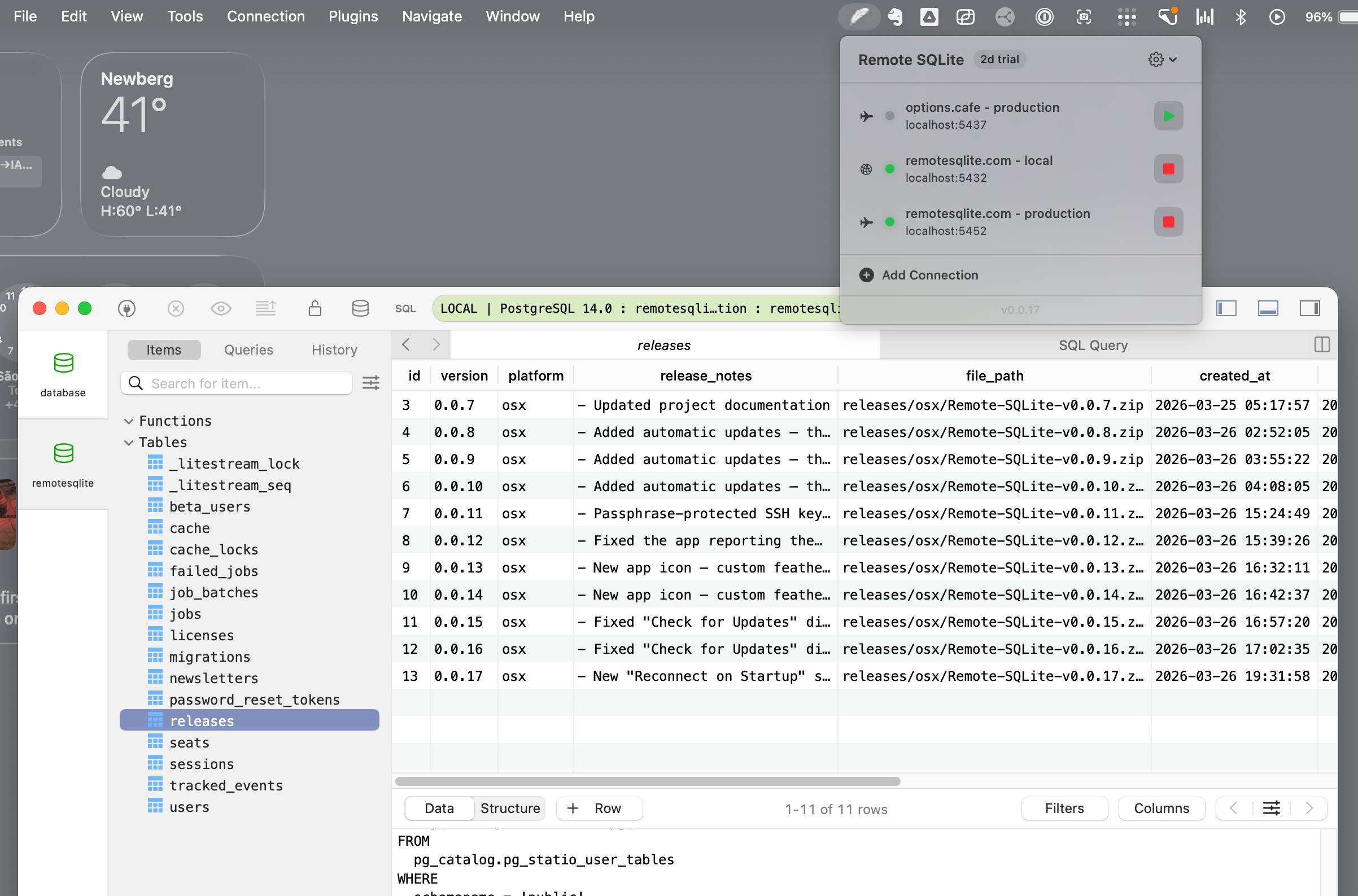
Live queries against production (~85ms)
Queries return in about 85 milliseconds. That's including the round trip through Fly's WireGuard mesh to wherever your machine actually lives. It works because Remote SQLite keeps a single persistent SSH session open instead of opening a new one per query — opening an SSH session through flyctl takes 3 to 4 seconds, which would make browsing unusable.
Practically, this means "browse table" feels local. Scrolling through 10,000 rows doesn't visibly lag. Hitting Cmd+R to refresh the table is instant. The experience matches what Postgres-on-Fly developers get for free.
Always run read-only against Fly production
Fly machines are real production infrastructure. Treat them that way. Toggle read-only mode on the connection and Remote SQLite will refuse to send any INSERT, UPDATE, DELETE, DROP, or ALTER — they're rejected on your Mac before they ever leave the wire.
This is also the right mode for connecting an AI coding agent. The recent industry stories about agents wiping production databases are exactly the failure mode read-only mode is built for. The agent can SELECT all day long; it can't drop anything.
What about LiteFS and LiteFS Cloud?
LiteFS is Fly's distributed SQLite layer. If you're using it, the database file you point Remote SQLite at is the LiteFS-mounted file inside the machine (typically /litefs/app.db). The mechanism is identical — Remote SQLite reads through LiteFS the same way your application does.
LiteFS Cloud has a built-in web data browser. It's good. It's also only available if you're paying for LiteFS Cloud and only shows the cluster's leader. Remote SQLite complements rather than replaces it: you get a desktop GUI experience for any Fly app running SQLite, including plain-volume deploys that aren't using LiteFS at all.
Framework notes
Rails 8 on Fly.io
Rails 8 made SQLite a first-class production database. The default path is /data/storage/production.sqlite3 (or similar — check your config/database.yml). Remote SQLite will treat it exactly like any other SQLite file. Read-only mode is strongly recommended for production Rails databases, since accidentally writing to schema_migrations would be very bad.
Laravel on Fly.io
Laravel deploys usually land the SQLite file at /var/www/html/database/database.sqlite or /data/database.sqlite, depending on how you've laid out the Dockerfile. Use whatever your .env's DB_DATABASE resolves to inside the running container.
Phoenix / Elixir on Fly.io
Phoenix's ecto_sqlite3 stores the file wherever the Repo config points. Most Fly Phoenix deploys put it on the volume at /data/app.db. Read-only mode still applies — even more so, because the BEAM is happy to retry an "I'll just check the database real quick" job thousands of times if it errors.
If you've been SCPing the file, stop
The "download a copy of production" workflow was always a compromise. It worked when SQLite-in-production was a niche choice and "look at the data" happened twice a year. It doesn't work now. Fly is pushing SQLite as the default and the tooling needs to keep up.
Connect once, browse forever. The point of putting your data on Fly was to keep it small, fast, and close to your app. The point of a GUI is to actually use it.
Try Remote SQLite free for 7 days. It's $50 one-time after that — same price for Fly users as everyone else, no per-app fees, no monthly subscription.
— Spicer
Browse your Fly.io SQLite database in TablePlus.
Free 7-day trial. $50 one-time after that. Uses your existing flyctl auth — no extra setup, no exposed ports, no services to deploy.