How to Connect TablePlus to a Remote SQLite Database Over SSH (2026 Guide)
TablePlus has no native support for remote SQLite. Years of open GitHub issues, no canonical answer. Here's the workflow that finally works — TablePlus pointed at a local proxy that talks to your remote SQLite file over a persistent SSH session.
Spicer Matthews
Founder, Cloudmanic Labs
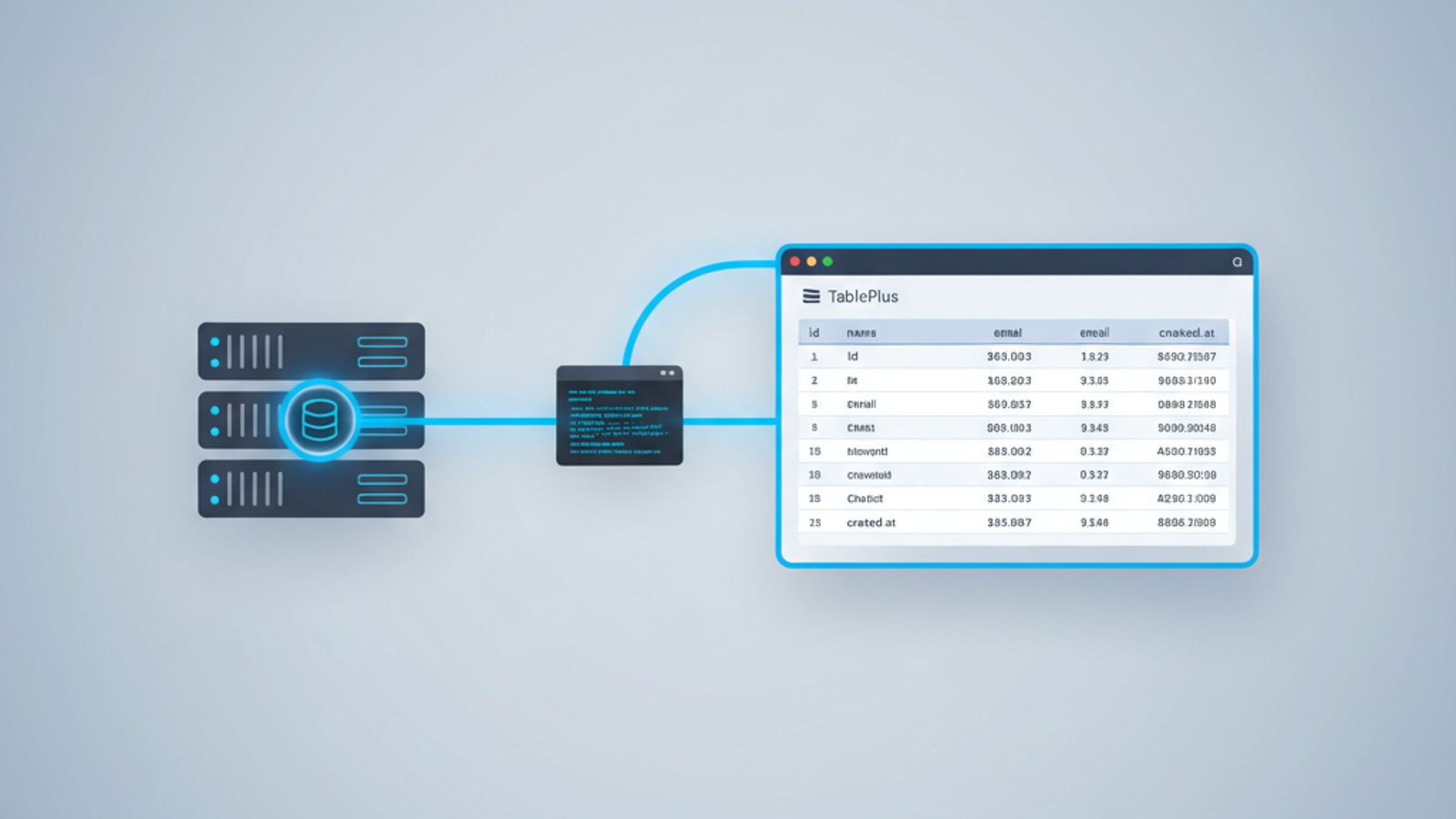
If you've tried to connect TablePlus to a SQLite database on a remote server, you already know how this story ends. It doesn't. TablePlus speaks Postgres-and-MySQL-over-SSH-tunnel fluently, but SQLite has no network protocol — there's nothing on the other end of the tunnel for TablePlus to talk to. So you fall back to ssh server, type raw SQL, and squint at unaligned text output. This guide shows you the workflow that finally makes it work the way you'd expect.
The problem: TablePlus doesn't natively support remote SQLite
This is the most-requested feature in the TablePlus tracker. Issue #183 ("SSH SQLite support") has been open since 2019. #1339 and #2952 ask the same thing from different angles. None have a real answer.
The reason isn't that TablePlus is lazy — the team has shipped SSH tunneling for every networked database it supports. The reason is that SQLite is fundamentally different from every other database in the dropdown.
Why SQLite is hard to access remotely
Every other database tool you've used works the same way:
- The database runs a server process that listens on a TCP port.
- Your GUI tool opens a socket to that port (optionally through an SSH tunnel).
- They exchange a wire protocol (the Postgres wire protocol, the MySQL protocol, etc.).
SQLite skips step 1. There is no server. SQLite is a library — code linked directly into your application — that reads and writes a file. The "database" is literally a single .db file on disk. There's no port to connect to, no protocol to speak, nothing listening.
An SSH tunnel by itself doesn't help. A tunnel forwards a port; if nothing is listening on that port on the remote side, the tunnel terminates into the void. That's the dead end every TablePlus user hits.
The fix: a local proxy that translates Postgres to SQLite
The shape of the solution is simple once you see it:
- Run a tiny program on your Mac that looks like a Postgres server to TablePlus. It binds to
localhostand speaks the Postgres wire protocol. - That program holds a persistent SSH connection open to your remote machine.
- When TablePlus sends a query, the proxy translates it from Postgres dialect to SQLite-compatible SQL, runs it over the SSH session against your real
.dbfile, and ships the results back in Postgres format.
From TablePlus's perspective, it's just talking to a normal Postgres database on localhost:5432. From your perspective, you're browsing your remote SQLite database with all of TablePlus's features — schema browser, query history, formatted results, exports, the works.
That's exactly what Remote SQLite does. The rest of this guide walks through setting it up.
Step 1 — Install Remote SQLite
Remote SQLite is a native macOS app for macOS 13 (Ventura) or later. Download it from remotesqlite.com and drag it to your Applications folder. There's a free 7-day trial — no credit card. The app lives in your menu bar; there's no dock icon.
Make sure you can SSH into your server from a terminal before you continue:
ssh you@your-server.example.com
If that works, the rest of the setup will work too. If you use SSH agent forwarding, key passphrases, or a custom ~/.ssh/config, Remote SQLite will pick those up — it shells out to your real ssh binary rather than reinventing the protocol.
Step 2 — Add a connection
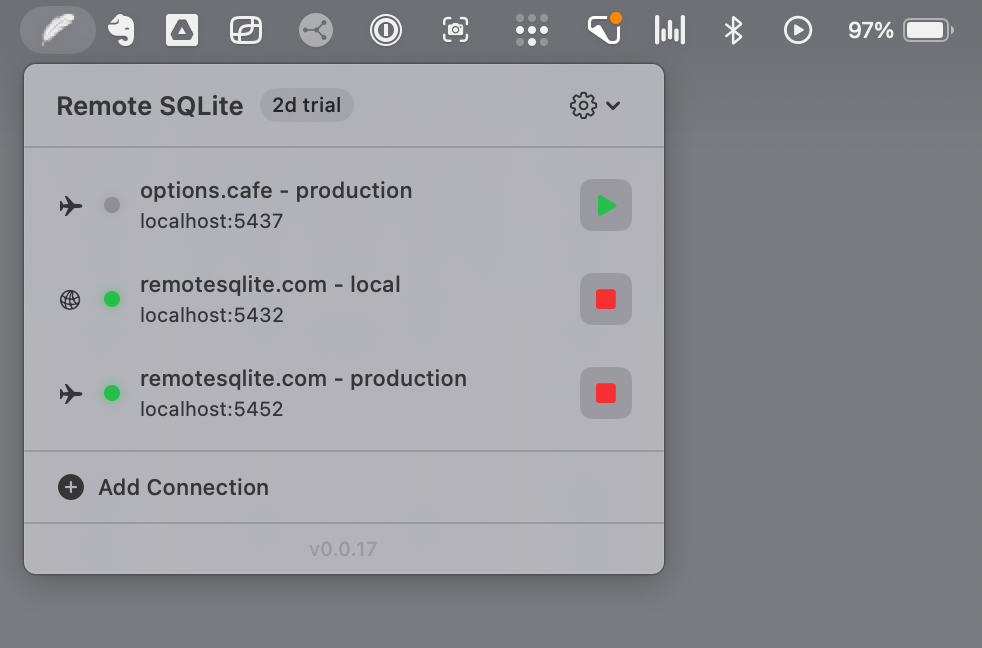
Click the feather icon in your menu bar and choose New Connection. Pick the SSH connection type (there's also a Fly.io option, covered separately) and fill in:
- Name — something memorable, like "Production app.db"
- Host — your server's hostname or IP
- User — your SSH user
- Database path — the absolute path to your SQLite file on the server, e.g.
/var/www/myapp/storage/app.db - Read-only mode — leave this on for production databases (more on this below)
Hit Test Connection. Remote SQLite will SSH into the server, check that the file exists, run a single SELECT to confirm SQLite can open it, and report back. Save when it passes.
Step 3 — Start the proxy
Back in the menu bar, click the play button next to your new connection. Two things happen:
- A persistent SSH session opens to your server.
- A local Postgres-protocol proxy starts on
127.0.0.1:5432(or the next free port if 5432 is taken).
You'll see a green dot next to the connection name. That's it — the hard part is done.
Step 4 — Open TablePlus
There are two ways to point TablePlus at your new proxy.
The fast way: one-click TablePlus import
Right-click the connection in Remote SQLite's menu and choose Open in TablePlus. Remote SQLite writes a TablePlus connection profile and opens it for you. TablePlus launches, the connection appears in your sidebar, and you're in.
The manual way
If you prefer to set the connection up yourself in TablePlus:
- Open TablePlus and create a new connection.
- Choose PostgreSQL as the type.
- Host:
127.0.0.1. Port: whatever Remote SQLite shows in the menu bar (usually5432). - User: anything — Remote SQLite ignores it. Password: leave blank.
- Database: again, anything. The proxy is bound to one SQLite file regardless of the database name you send.
- Save and connect.
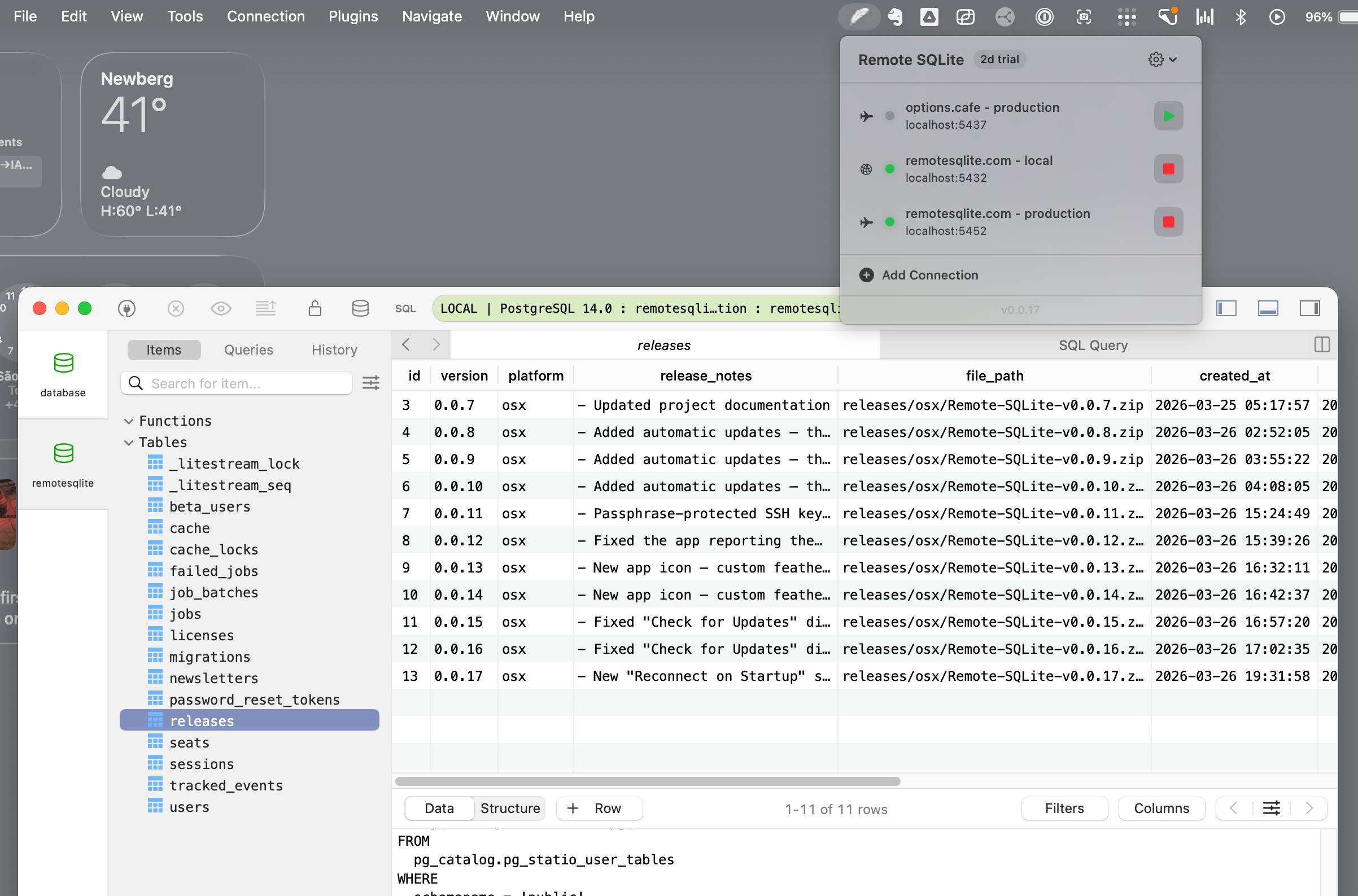
Your tables show up in TablePlus exactly like they would for a Postgres database. Run a query, browse a table, double-click a cell to edit (if read-only mode is off). You're done.
About that ~85ms query time
Queries return in roughly 85 milliseconds. That number isn't a coincidence — it's the round-trip time of a single SSH-multiplexed message to a typical North American server. The first version of this idea (a shell script that opened a new SSH connection per query) spent 3 to 4 seconds on the SSH handshake every single time. Unusable.
Remote SQLite keeps one SSH session open the whole time the proxy is running. Queries piggyback on that existing session, which is why the GUI feels local instead of like you're driving a remote shell.
Use read-only mode for production
Production browsing should default to read-only. Toggle the read-only switch on the connection and Remote SQLite will reject any INSERT, UPDATE, DELETE, DROP, or ALTER before it leaves your Mac. The same flag protects you from TablePlus's "double-click a cell to edit" behavior — the edit will silently fail rather than mutating your live database.
This is also the right mode if you're hooking an AI agent up to production data, or if you're sharing your screen and don't want a stray Cmd+S to delete a row.
Troubleshooting
"Connection refused" or "Permission denied"
Confirm that ssh you@host works in a plain terminal first. Remote SQLite uses your system SSH, so if your terminal can't get in, neither can the proxy. The most common issues are:
- SSH agent isn't running —
ssh-add -lshould show your keys. - Your
~/.ssh/configuses an alias the GUI doesn't know about — use the real hostname in Remote SQLite, or reference the alias as both Host and User. - The remote user can't read the SQLite file — check file ownership (
ls -l /path/to/app.db).
"sqlite3: command not found"
Remote SQLite needs the sqlite3 binary on the server. Most modern Linux distributions ship with it; Alpine-based containers often don't. apt-get install sqlite3 or apk add sqlite and you're set.
"Database is locked"
SQLite serializes writes. If your application is in the middle of a heavy migration, queries can briefly fail with this error. It's not a Remote SQLite issue — it's a SQLite behavior. Re-run the query, or wait for the migration to finish.
Works over Tailscale / WireGuard / ZeroTier?
Yes. As long as ssh you@host resolves and connects, the transport doesn't matter. Tailscale users typically use their MagicDNS name (app.tailnet-name.ts.net) as the Host.
Frequently asked questions
Does this work with DBeaver, DataGrip, or Postico?
Yes. Anything that can connect to PostgreSQL works — DBeaver, DataGrip, Postico, pgAdmin, Beekeeper Studio, DbVisualizer. The proxy speaks the Postgres wire protocol, so to those tools it's indistinguishable from a Postgres database. We've tested with all of the above.
What about WAL mode and concurrent writes?
WAL is supported. SQLite's WAL mode allows concurrent readers and a single writer; Remote SQLite is a reader (or a writer, with read-only mode off) and doesn't interfere with your application's writes.
Does it work with encrypted SQLite databases?
SQLite Encryption Extension (SEE) and SQLCipher are not currently supported. The proxy uses the standard sqlite3 binary on the server, which doesn't know about either.
Is my data ever sent to a third party?
No. Remote SQLite is a desktop app. It has no backend service. Your queries go from your Mac, through your own SSH connection, to your own server. There's no Remote SQLite cloud, no telemetry that includes query content, no analytics on your data.
If you've been hitting the wall on this since 2019, you're not alone. The good news is that the wall is finally gone. Try Remote SQLite free for 7 days — it's $50 one-time after that. You'll wonder how you went years without it.
— Spicer
Connect TablePlus to your remote SQLite in 60 seconds.
Free 7-day trial. $50 one-time after that. macOS 13 or later. Works with TablePlus, DBeaver, DataGrip, and any Postgres-compatible GUI.